
macOS
Apple Silicon · macOS 12.0+
Signed and notarized by Apple. Open the disk image — FlyingFiles will offer to install in your Applications folder.
Download for macOS.dmg · 29,6 MB · v1.7.4YOUR FILES. IN CONTROL.
A dual-pane file manager for people who move files all day.
Disks, servers, archives. One window, with everything at your fingertips.
Download FlyingFiles Explore the app ↗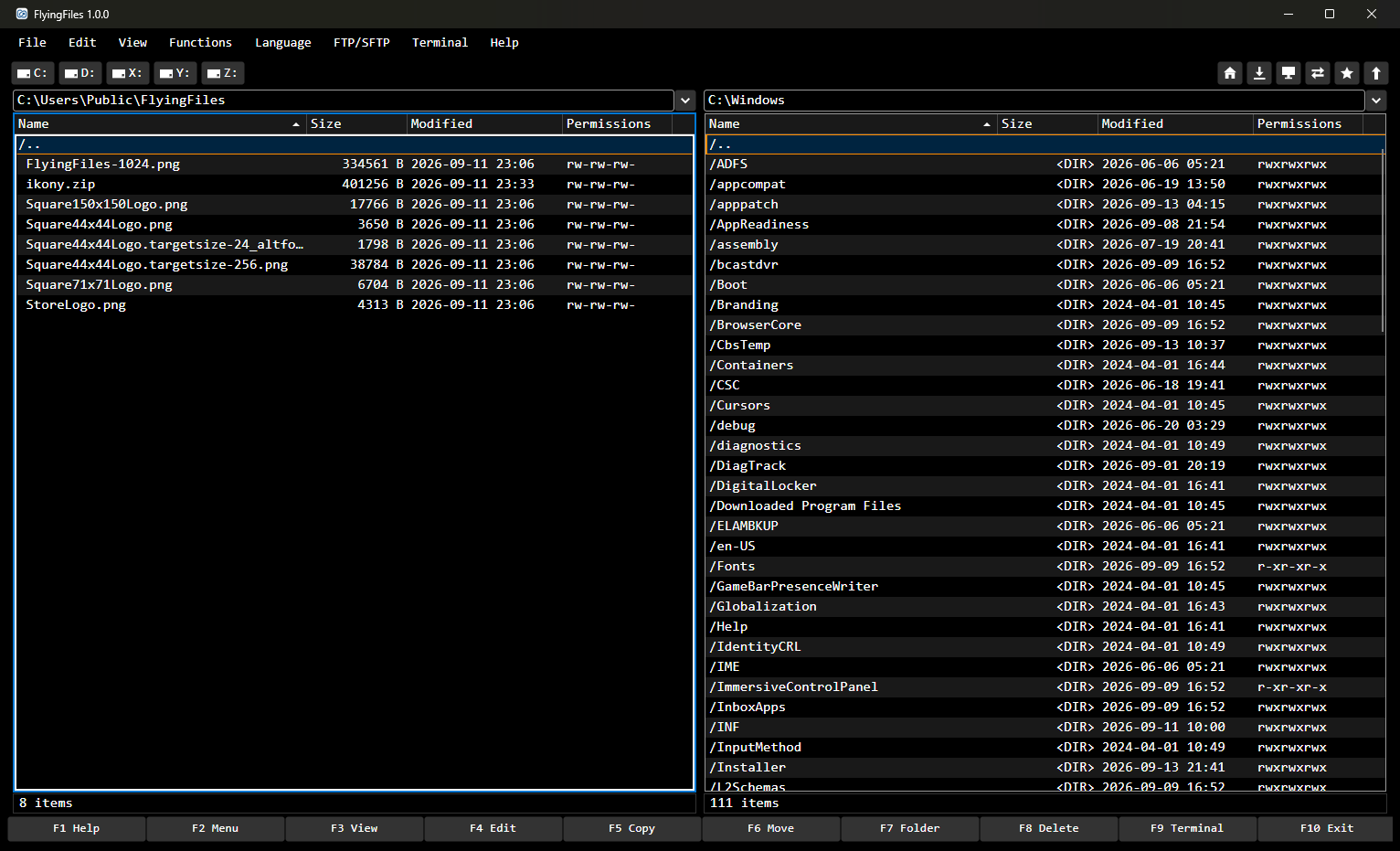
The F1–F10 keys sit at the bottom of the window: F3 view, F4 edit, F5 copy, F6 move, F7 new folder, F8 delete. Tab switches panels, Space selects. You can change the F1–F10 keys and other shortcuts with File → Keyboard Shortcuts…. The mouse works too — you can drag files between the panels and to other apps — but you don't have to reach for it.
Your computer's disk, a USB drive, a network share, an FTP or SFTP server and a ZIP archive all look the same in a panel: like an ordinary folder. You copy between them with the same F5, without a separate app for each one.
FlyingFiles is a native app that starts in a fraction of a second. Before copying, it checks what already exists at the destination, and long operations show their progress and can be cancelled. The interface doesn't freeze, even with a slow server.
Two panels. Source on one side, destination on the other. Sorting, hidden files, drive buttons, your home folder, Downloads and Desktop in one click, favorite paths on F2. You drag files with the mouse between the panels, and files on a disk also to Finder, File Explorer or another app and back.
Copying without surprises. Conflicts are checked before the copy starts, and you choose: overwrite all, overwrite older or skip duplicates. Progress, speed, and a list of files that couldn't be copied.
FTP, FTPS and SFTP. A server opens in the panel like a folder. Passwords are kept in the system keychain, not in an app file. SSH key login, retrying after a dropped connection, optional SHA-256 verification.
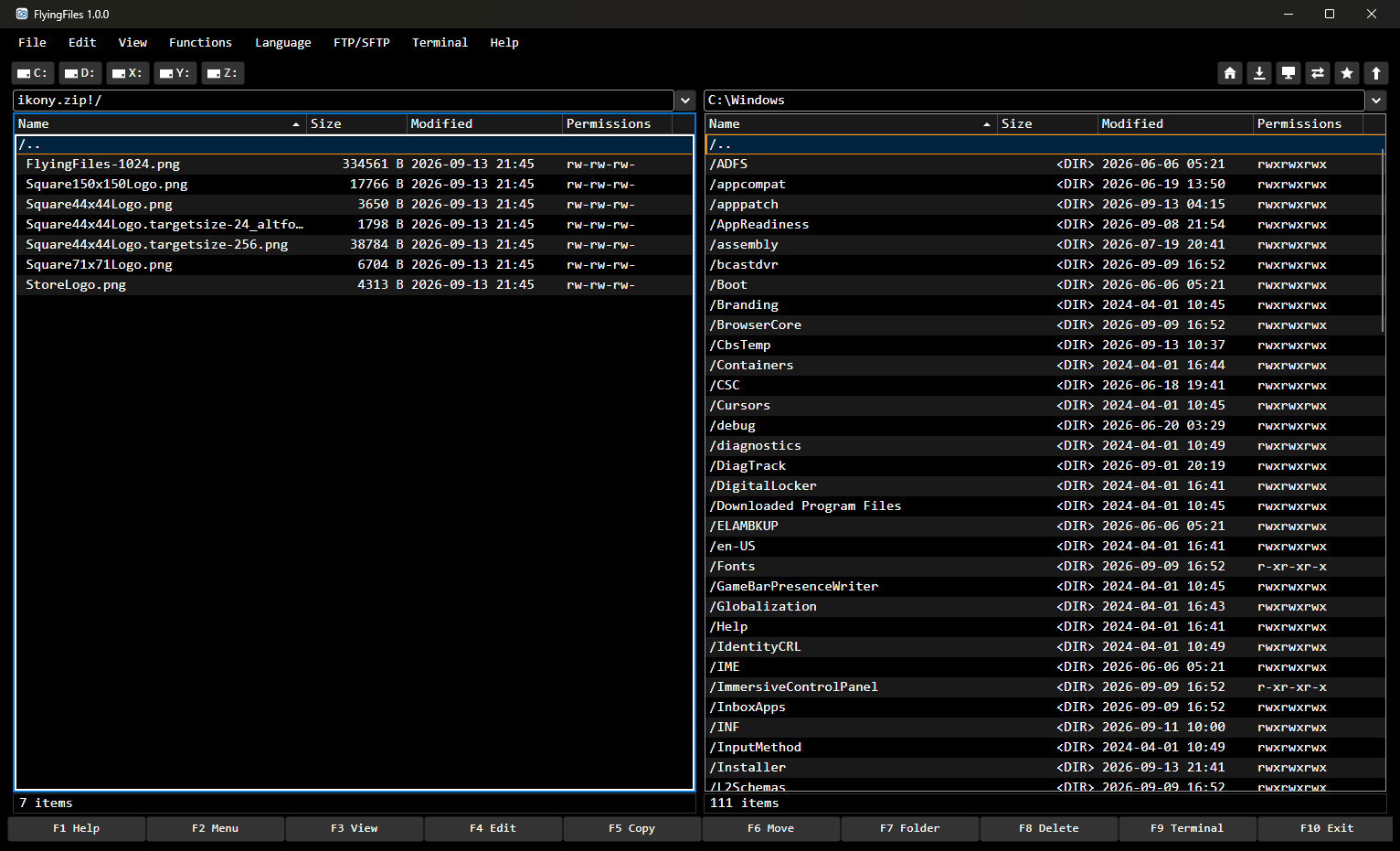
Archives as folders. ZIP, TAR, TAR.GZ, TAR.BZ2, TAR.XZ and GZ: open them, change them, create them. 7z and RAR open read-only.
Viewing with F3. Text with syntax highlighting and encoding detection, formatted Markdown, photos with zoom and arrow-key browsing, a hex view, video details. Files of any size on a disk open instantly, and viewing works for files on servers too.
Editing with F4. A text editor with syntax highlighting; Markdown as in Obsidian; resizing, cropping and background removal for photos; a hex editor for files of any size. Saving writes straight back to the disk or the server.
Search and compare. Search by name, content, size, date and permissions. Search changes finds recently modified files and copies them to the other panel. Folder comparison with the result saved to CSV.
SSH and Telnet terminals. Pick a saved server from the list on F9, and the connection opens in the system terminal.
Disc burning. CDs, DVDs and Blu-ray discs, M-DISC too. Before writing, the app tells you whether the data will fit, and a folder marked as a disc template shows, as you go, how much of that disc it already takes.
Video conversion. Change the resolution, quality, codec and format of videos, several at once too. The app uses the free FFmpeg installed on your system and never overwrites existing files.
The same settings on every computer. You move servers with their passwords, terminals, shortcuts and the look of the app with a password-encrypted file or over the local network with a computer paired with this one — no account and no servers on the internet. Before anything changes, you see the list of changes. A paired computer can also share its drives: you open them in the panel and copy files as from a local disk.
Here's how you upload a folder to a server:
In the left panel, put the cursor on the folder.
Tab takes you to the right panel. Connect it to a server from the FTP/SFTP menu or with a favorite path (F2).
Tab back, F5, Enter. The app preserves file dates by default. If files with the same names already exist on the server, it asks what to do with them.
Watch the progress. If any file fails to transfer, you get a list you can save.
Free. No account. Just download and get to work.
FlyingFiles runs entirely on your computer. There are no accounts, telemetry, ads or analytics, and your files are never sent anywhere. The app connects only to servers you add yourself, to computers you pair yourself, and, on macOS and Linux — at startup (you can turn this off) and when you ask it to — to nci.pl to check for a new version. Privacy policy →
User manual — from first launch to servers and archives.
Keyboard shortcuts — all of them on one page.
Changelog — what's new in each version.
Email us: kontakt@nci.pl