
Getting started
First launch
If you don't have the app yet, start with installation. After the first launch:
the interface is in the language of your system — English, Polish, Spanish, German or French (English with any other system language); to change it, choose Language from the menu;
both panels show your home folder;
the window is 1200 × 800 points; the app remembers its size, position and panel paths when you close it.
The app window
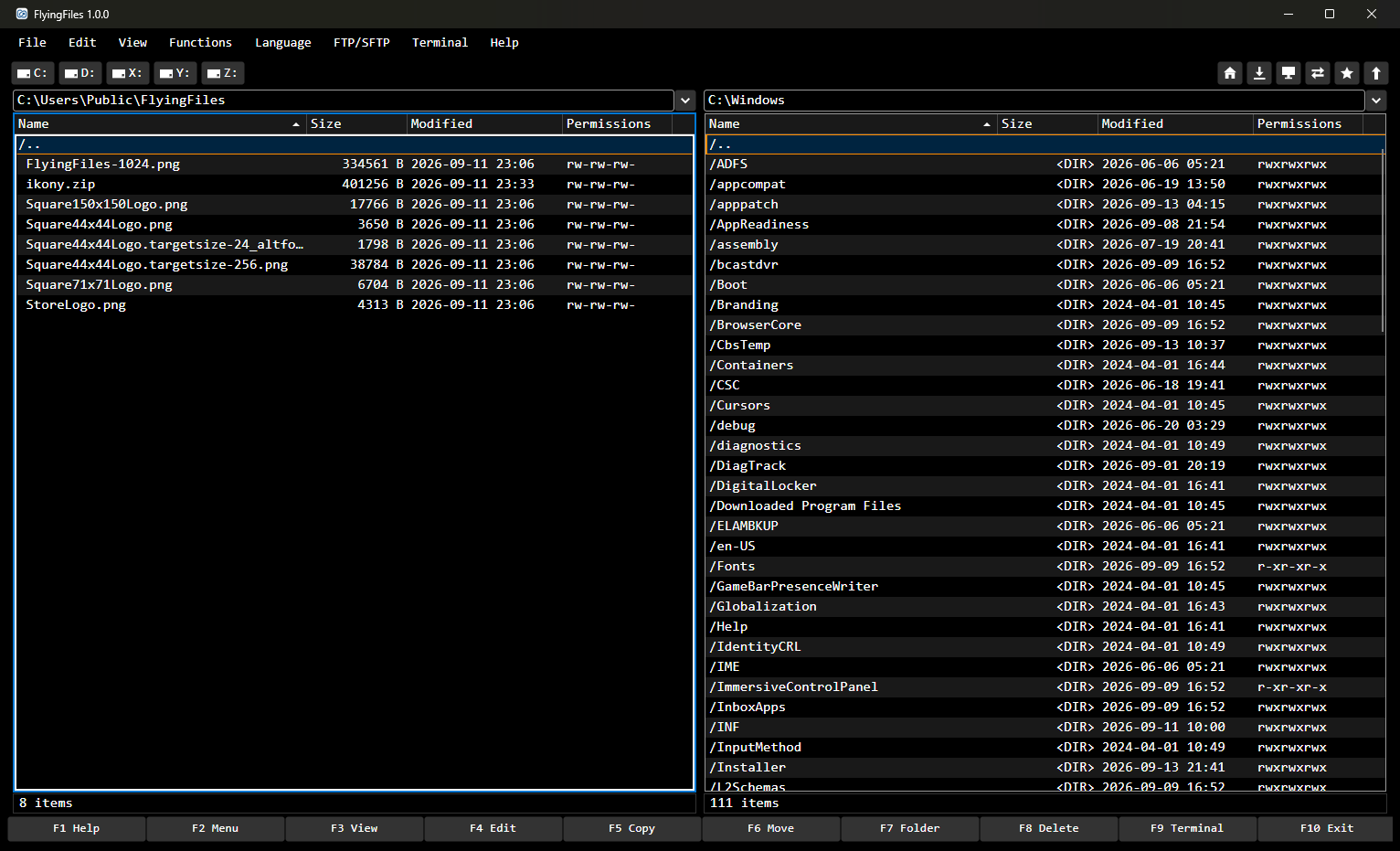
Menu — on macOS in the menu bar at the top of the screen, on Windows in the window: File, Edit, View, Functions, Language, FTP/SFTP, Terminal, Help.
Drive buttons on the left — on macOS the startup disk and connected volumes (USB drives, external disks, network shares), on Windows the drive letters, on Linux the root folder and mounted media. The tooltip shows the name, path and free space. After them come the cloud folders (macOS and Windows) and paired computers.
Place buttons on the right — icons only, with the names in tooltips: home folder, Downloads, Desktop, sync with the other panel, add the current path to favorites, and the root folder. They act on the active panel.
Path field of each panel. You can click it and type an address. The arrow button next to it opens a list of recently typed paths.
Column headers: Name, Size, Modified, Permissions. Click one to sort.
File list. The first row,
/.., leads to the parent folder. Folder names start with a slash (/Documents) and show<DIR>in the size column.Info bar — for the item under the cursor, its name, permissions, and owner and group; on the
/..row, the number of items in the folder.Disk space — a usage bar and the free space on the disk that holds the folder.
F1–F10 key bar — reminds you what each key does; you can also click the buttons. After you change the shortcuts, it shows the new keys.
The window title shows the app name and version. Short messages also appear there for a few seconds, e.g. “FlyingFiles 1.5.0 — Copied 3 items”.
The active panel
At any moment you work in one panel — the active one. It has a distinct border in the accent color. The other panel is the destination: that's where copied and moved files go.
Tab switches the active panel.
Clicking a panel also makes it active.
The cursor is the row with orange lines above and below it. It marks the item the keys act on. Selected rows are bold and highlighted in color — selection is covered in chapter 3.
Your first copy
In the left panel, go to the folder with the file: the arrow keys move the cursor, Enter opens a folder, Backspace goes up a level.
Press Tab and, in the right panel, go to the destination folder.
Press Tab to return to the left panel, and put the cursor on the file.
Press F5. The Copy dialog shows where you're copying from and to.
Press Enter.
The file appears in the right panel, and a message about the copy appears in the window title. If the destination folder already has a file with that name, the app asks what to do. Details: File operations.
Tip: You can also drag the file to the other panel with the mouse. When you drop it, the same Copy dialog opens, and Enter starts copying (Drag and drop).
Three things to try next
Put the cursor on a photo or a text file and press F3 — viewing files. Esc closes the window.
Put the cursor on a
.zipfile and press Enter — the archive opens like a folder (Archives).Press F2 and add the current folder to your favorites (Favorite paths).
Help in the app
F1 opens the help window in the language of the interface. It is divided into sections:
keyboard shortcuts in the same groups as the Keyboard Shortcuts window: Command bar F1–F10, Panels and top bar, File, Functions, FTP/SFTP and Help. The list is always up to date — after you change a shortcut, it shows the new one, and it leaves out actions without a shortcut (and groups with no shortcuts at all);
File list in a panel — selecting, Enter, Backspace, Shift+Tab and the quick filter;
Server and terminal lists — the keys of the saved server and terminal lists in a panel;
Dragging with the mouse — where dropped files go and which keys switch between copying and moving.
At the end, under the More information heading, are the Full user manual, Frequently asked questions (FAQ) and Help and contact links. They open the matching pages of this website in your browser, in the language of the app's interface. The Keyboard Shortcuts… button closes the help and opens the window for changing shortcuts. OK, Enter or Esc closes the help.
Help → About shows the version, the list of libraries with their licenses, and a link to this website.
System information
Help → System Information… describes the computer the app is running on:
Computer — name, model, user and system uptime;
Operating system — name with version and build, kernel, architecture and, on Linux, the desktop environment;
Processor — name, cores (also split into performance and efficiency cores when the processor has them), logical processors and clock speed, if the system reports it;
Memory — total, in use with a bar and a percentage, available and, on macOS and Linux, swap as well;
System disk — used and free space with a bar, as below the file panel;
Displays — resolution in pixels, scale and which one is the main display;
FlyingFiles — the app and .NET versions, the app's architecture and the memory it uses.
A row the system didn't provide is left out of the window. Memory, uptime, disk and the app's memory refresh every 2 seconds. You can select values with the mouse, and Copy to clipboard copies the whole window as text — handy for a problem report. Close, Enter or Esc closes the window.
Multiple windows (macOS)
Right-click the FlyingFiles icon in the Dock and choose New Window. Each window has its own panels; settings and saved connections are shared. Closing the last window quits the app.
Dock (macOS)
macOS: right-click the app icon in the Dock to see the open windows. Main windows are named after the folders in both panels, with the connection name for a server; click an entry to bring that window forward.
Quitting
F10, File → Exit, closing the window or, on macOS, Cmd+Q. Before it quits, the app:
saves changes in open archives (if saving fails, it shows an error and the window stays open),
disconnects from servers,
saves the panel paths, window size and column layout.
FlyingFiles 1.7.4 · Features added after 1.0.0 are marked in the text.