
Viewing and editing
F3 shows a file, and F4 lets you change it. Both windows open files of any size. They share the view switch, Markdown, syntax highlighting, the Find bar, going to a line, large files and encodings — all described at the end of this chapter.
Viewing — F3
F3 (or View in the context menu) opens the file under the cursor in the preview window. On a folder, nothing happens. Esc or Close closes the window.
The preview also opens when you press Enter on a file the system has no app for, and on any file on a server or in an archive.
The app downloads a file from an FTP/SFTP server first — the Downloading file window shows the progress, the speed and a Cancel button.
The app recognizes the file type by itself:
| Type | How it's recognized |
|---|---|
| image | by the file content: PNG, JPEG, GIF, BMP, WebP |
| video | by the extension (.mp4, .mov, .mkv, .avi, .webm…) |
| text | by the extension or by the start of the file: no zero bytes and few control characters; UTF-16 — by the zeros in every other byte |
| anything else | hex view |
Text
The header shows encoding, line count and size. Choose Text, Hex or Formatted from View (details).
The text is read-only, with line wrapping off by default, in a monospaced font. Code is shown in syntax colors, and a Markdown file is shown formatted.
When the window opens, the cursor is in the text: the arrow keys scroll right away, and Shift with the arrow keys selects.
Cmd+F / Ctrl+F shows the Find bar, and Cmd+L / Ctrl+G goes to a line.
A text file over 4 MB opens in the large file view: with line numbers, without colors and without Markdown formatting.
Photos
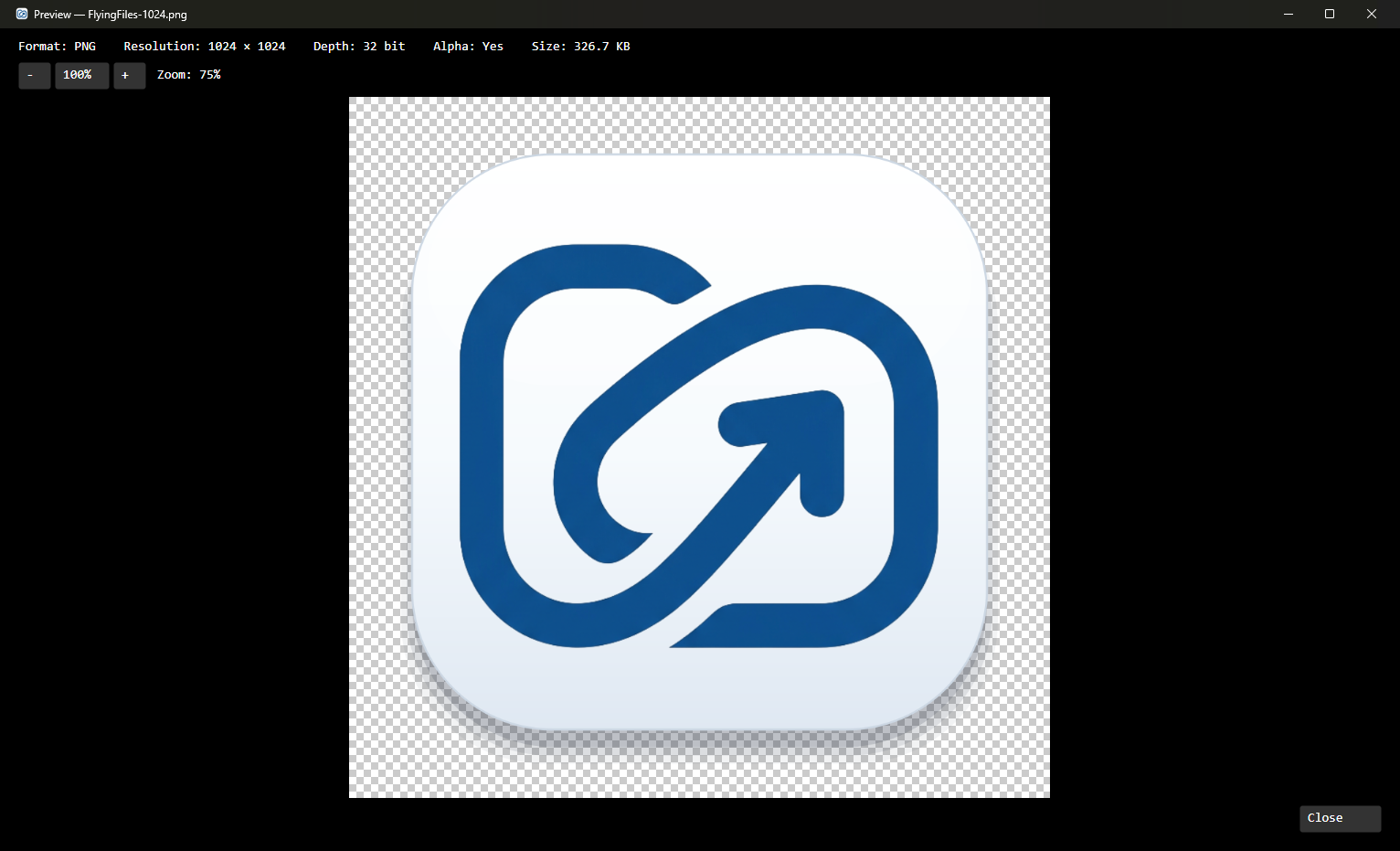
Above the image: the format, resolution, color depth, alpha channel and file size.
The image is fitted to the window at first. The Fit button (Cmd/Ctrl+9) goes back to fitting, which follows the window size, and
100%(Cmd/Ctrl+0) shows the image at its real size, pixel for pixel. The-and+buttons, and Cmd/Ctrl with + and -, change the zoom (10–800%).A zoom you choose yourself stays while you browse the next photos with the arrow keys, until you close the preview.
Transparent areas are shown as a checkerboard.
Browsing with the arrow keys
← and → show the previous and next photo from the same folder, in the panel's order. Files of other types are skipped.
Round arrow buttons appear on both sides of the photo. They fade out after 5 seconds and come back when you move the mouse over the photo. Clicking one works like the arrow key.
Browsing stops at the first and the last photo. The Wrap photo and film browsing setting makes the first photo come back after the last one.
When the folder has only one photo, there are no arrows.
On a slow disk or with a large file, “Loading…” appears on the photo.
Videos are browsed the same way, but separately: from a photo you go to a photo, from a video to a video. The Browse everything viewable with arrows setting combines photos and videos into one sequence (it takes effect from the next F3). Both settings are on the Preview and video tab, in the File preview group.
Videos
FlyingFiles doesn't play videos in its own window. Instead, it shows:
a frame from the video — on macOS (from the system's Quick Look); on Windows and Linux, only the description;
the resolution and duration of MP4, MOV, M4V and 3GP files — the app reads only a few bytes from the header, so even a multi-gigabyte file opens instantly, including from a server;
the Open in the system player and Open With buttons, the latter with a list of apps the system associates with the file (if there are none, the list shows “The system knows no application for this file”). Both work for files on the computer's disk.
To change a video's resolution, quality, codec or format, use Convert Video… in the context menu or in the Functions menu — see the Video conversion chapter.
Hex view
A file that isn't an image, a video or text is shown in hex — the whole file, whatever its size. Above the content you see “Hex preview”, the number of bytes and the size.
On the left is the offset of the first byte in the row, in the middle 16 bytes (with a gap after the eighth), and on the right the same bytes as characters. A byte that isn't a printable ASCII character is shown as a dot. A header above the columns numbers them.
A part the app hasn't read from the disk yet shows
··dots for a moment.Tab moves the cursor between the hex column and the character column, and Shift with the arrow keys selects.
The status bar below the content shows the cursor position, e.g. “Offset: 0x1F00 (7,936)”, and the size of the selection.
The Find bar searches the whole file for text or bytes.
You can look at the bytes of any text file the same way — with View → Hex.
Warning: TIFF and HEIC files aren't currently recognized as images — you'll see them in the hex view. You can open them in the system app with Enter.
Editing — F4
F4 (or Edit in the context menu) opens the file in the edit window. The app downloads a file from a server first, and saving uploads it back to the server. A file in an archive works the same way — the change goes into the archive when you leave it.
The app recognizes the file type the same way as the preview: text goes to the text editor, an image to the image editor, and any other file to the hex editor.
| Action | Key |
|---|---|
| save and stay in the window | Cmd+S / Ctrl+S |
| save and close | F2 or the Save button |
| show the Find bar | Cmd+F / Ctrl+F |
| go to a line or offset | Cmd+L / Ctrl+G |
| close without saving | Esc or Cancel |
Unsaved changes show in the window title, e.g. “Edit — notes.txt (Unsaved changes)”. After you save, the note disappears, the panel refreshes, the cursor moves to the saved file, and “Saved file: …” appears in the main window title.
Warning: Esc, Cancel and closing the window end editing without asking about unsaved changes. Save before closing.
Esc in the Find bar only hides the bar. While a save with a progress bar is running, Esc cancels the save.
Text
A text file up to 4 MB opens in an editor with a monospaced font and line wrapping off by default. When it opens, the cursor is at the start of the text and you can type right away.
Code is shown in syntax colors, and a Markdown file is edited formatted.
View → Text / Hex lets you edit the text bytes and return to text — display modes.
The file is saved in the same encoding it was opened in.
A file larger than 4 MB opens in the large file editor.
Shift+F4 creates a new empty text file and opens it right here. A new file is saved in UTF-8.
Images
The image editor has three tabs, with the format and save path choices below them:
Size
Width and Height (1–20,000 px). With Keep aspect ratio checked, changing one value recalculates the other.
The new size is applied when you save.
Crop
X, Y, W and H define the crop area. The area outside it is dimmed.
Crop crops the image immediately and resets the fields.
Wand and background
Click the image: the wand selects a contiguous area of similar color (a blue overlay and the pixel count).
Wand tolerance (0–255, default 24) sets how much the color may differ.
Remove background makes the selected area transparent. If the chosen format doesn't support transparency, the app switches it to PNG.
Clear selection removes the selection.
Format and save path
Format: PNG, JPEG, WEBP or BMP. Changing the format changes the extension in the path.
Save path is the edited file's path by default. Type a different one to save the result as a new file and keep the original.
Below that, the app shows the format and resolution it will save the file with. BMP is saved without transparency.
The -, 100% and + buttons, and Cmd/Ctrl with +, -, 0, change the view zoom.
Hex editor
A file that is neither text nor an image opens in the hex editor — whatever its size. A text file gets here when you switch to Hex. The layout is the same as in the preview's hex view, and the “Hex editor” label above the content shows the number of bytes and the size after your changes.
By default, the editor overwrites bytes — a change doesn't shift the rest of the file. Insert mode is turned on with the Insert key or by clicking the button with the mode name (Overwrite) in the status bar below the content — a Mac has no Insert key. You go back to overwriting the same way.
In the hex column you type hex digits (
0–9,A–F), two per byte. In the character column you type ordinary characters: in a text file in its encoding, in a binary file as Latin-1, and a character outside Latin-1 as UTF-8.Tab switches between the hex column and the character column.
Backspace and Delete delete bytes in both modes.
Changed bytes have a different color. The status bar shows the cursor position, the size of the selection and the mode.
Shift with the arrow keys selects. Home and End jump to the start and end of the row, and with Cmd / Ctrl — to the start and end of the file.
Cmd+C / Ctrl+C copies the selection (up to 16 MB): from the hex column as
4A 6F …, from the character column as text. Cut, paste and select all work too (X, V, A with Cmd / Ctrl). In the hex column, pasting accepts only bytes written in hex.Cmd+Z / Ctrl+Z undoes a change; a run of typed bytes is one step. Cmd+Shift+Z / Ctrl+Y redoes it.
How the app saves a binary file is described under Large files.
Word wrap and more room for content
Choose View → Word wrap to fit long lines to the window width, including files larger than 4 MB. It is off by default. It changes only the display, not the file contents or saved bytes; formatted Markdown wraps automatically. The choice lasts until the window closes, including switches between Text/Hex/Formatted.
View → File information hides the header with encoding, syntax, line count and size, also for images, video and bytes. With images, hide the Zoom toolbar and, in F4, Image tools too. Hidden bars give their space to the file; zoom commands remain in the menu. Information and toolbars start visible; the choice applies to the current window.
View switch
In F3 and F4, choose the display mode from View: in the system menu bar on macOS, or the window menu bar on Windows and Linux. The menu replaces the mode buttons above the content.
| View | What it shows |
|---|---|
| Formatted | Markdown files up to 4 MB only: the document without markup (see Markdown); selected when the file opens |
| Text | the source text in a monospaced font |
| Hex | the file's bytes; in the editor — in the hex editor |
In the preview, the Hex view shows the file's real bytes.
When you edit a file up to 4 MB, the Hex view shows the text from the editor in the file's encoding, including unsaved changes. When you go back to the Text view, the editor gets the bytes you changed in hex. Bytes that aren't valid text in that encoding turn into the replacement character (a diamond with a question mark), and the app warns you.
In a large file, both views show the same file and the same place: the selection carries over from one view to the other, and your changes stay.
A binary file has only the hex view.
Markdown
F3 and F4 open Markdown files (.md, .markdown, .mdown, .mkd, .mkdn, .mdwn) up to 4 MB in the Formatted view: in a proportional font, with line wrapping and without the markup characters. The Text view shows the source, as for any text file.
What gets formatted:
headings — with
#at the start of the line or underlined with===or---— larger and bold;bold, italics, strikethrough
~~text~~, highlight==text==and inline code;bulleted and numbered lists, and
- [ ]and- [x]tasks as checkboxes; a done task is struck through;quotes with a bar on the left, nested ones too;
code blocks fenced with three backticks or three tildes: on a shaded background, in a monospaced font, with the language name in the corner and in syntax colors when the language has a definition (e.g.
python,js,json,xml);tables with a grid, a bold header and column alignment; the row of dashes under the header is hidden;
horizontal rules; YAML properties at the start of the file — dimmed, on a shaded background;
links
[text](address), addresses in angle brackets and plain web addresses,[[name]]notes as in Obsidian,#tagsand HTML entities;images
and![[file.png]]stored on the computer's disk, with a path relative to the document's folder or a full path. A number after a vertical bar, e.g.![[file.png|300]], sets the image width.
An image from the internet, a missing or unreadable image, an image in a table, and any image in a document from a server or an archive is shown as an icon with its description. The app doesn't download anything from the internet.
The markup stays in the file. Saving, searching, copying, going to a line and undo work on the source text.
In the preview (F3), the whole document is formatted. Clicking a link to a web page or an email address (http, https, mailto) opens it in the browser or the email app. A link to another file or note does nothing, and task checkboxes can't be ticked.
In the editor (F4), the text is formatted too, but the line with the cursor and any selected lines show the source text: the markup is dimmed, while the heading size and bold stay. When the cursor is in a table, a code block or the properties, the whole block is revealed.
Clicking a task checkbox in a formatted line toggles
[ ]and[x]without moving the cursor. Cmd+Z / Ctrl+Z undoes it in one step.A plain click on a link puts the cursor in it, as in ordinary text. Cmd+click / Ctrl+click opens the link.
Over a task checkbox — and over a link while Cmd / Ctrl is held down — the mouse pointer turns into a hand.
When you select with the mouse, revealing waits until you release the button, so the text doesn't move under the pointer.
What the view doesn't format: reference-style links ([text][ref]), footnotes, math, HTML tags (they stay visible, dimmed), indented code blocks without a fence, and styles that span several lines. A table wider than the window or longer than 1,000 rows stays as source text. The wrapped continuation of a list item or a quote starts at the left edge. Enter in a list item doesn't start a new item.
Syntax highlighting
The preview and the editor color code by the file extension. The colors match the light or the dark theme.
| Language | Extensions |
|---|---|
| PHP | .php, .phtml, .php3, .php4, .php5, .php7, .php8, .phps |
| Python | .py, .pyw, .pyi |
| C# | .cs, .csx |
| C++ | .cpp, .cc, .cxx, .c++, .h, .hh, .hpp, .hxx, .h++, .ipp, .tpp, .ixx, .cppm |
| HTML | .html, .htm, .xhtml, .shtml |
| CSS | .css |
| JavaScript | .js, .mjs, .cjs, .jsx |
| JSON | .json, .jsonc, .json5, .jsonl, .ndjson, .jsonld, .geojson, .webmanifest, .har, .ipynb, .code-workspace |
| XML | .xml, .xsd, .xsl, .xslt, .svg, .plist, .xaml, .axaml, .csproj, .fsproj, .vbproj, .vcxproj, .props, .targets, .nuspec, .resx, .slnx, .config, .appxmanifest, .wsdl, .rss, .atom, .kml, .gpx, .xlf, .xliff, .storyboard, .xib, .opml |
In most languages, comments, strings, keywords and numbers get their own colors.
JSON: keys have a different color from string values; plus
true,false,null, numbers and comments (including JSON5 syntax).XML: tag names, attribute names and values, comments, declarations (
<?xml …?>,<!DOCTYPE …>), CDATA sections and entities. Text between tags stays uncolored.
In the editor, the line above the text shows the name of the language (“Syntax: PHP”, or “Syntax: Plain text” for other files) and the path of the folder with the definitions. The preview shows only the colors.
As you type, the colors follow the text and don't flicker. After a moment, only what really got a different color changes — e.g. the rest of the line after you type
#in Python.The colors, the rules and the list of extensions are described in JSON files in the
syntaxfolder next to the settings file; the folder holds a README. You can change them or add a language of your own. Changes take effect the next time you open the preview or edit window. The same definitions color code blocks in Markdown.A text file over 4 MB stays without colors. The analysis has limits too: text longer than 2 million characters (a file of about 2 MB) stays without colors, and dense XML and JSON lose them already at about 0.5–1 MB. The editor then says “highlighting disabled” above the text, and you can still change and save the text.
The editor shows an error in a definition file above the text. A language with a faulty definition stays without colors in the preview and in the editor, while the other languages keep their colors.
Find bar
The search bar works in text and in the hex view, in the preview and in the editor. It is hidden when the window opens.
Cmd+F / Ctrl+F shows the bar below the content and moves the cursor into the Find field.
As you type, the app highlights the first match, and the counter shows “1 / 12”. Enter or Next goes to the next match (after the last one, it goes back to the beginning), and Previous goes to the one before. Letter case doesn't matter.
Esc in the field, or the cross at the end of the bar, hides the bar and clears the search text. Esc outside the bar closes the window (in the editor — without saving).
In a large file and in the hex view, searching works a little differently:
The app searches the whole file in the background, and the counter shows the progress, e.g. “3 / 41 (searching… 45%)”. The first highlighted match is the first one after the cursor, not the one at the start of the file.
The counter stops at 100,000 matches and then shows “+”.
After the content changes, the counter says “Content changed — Next searches again”.
In the hex view, a list next to the field switches between Text and Bytes (hex). You type bytes as pairs of digits, e.g.
4A 6F(also4a6for0x4A, 0x6F).
Go to a line or offset
Cmd+L / Ctrl+G works in text and in the hex view, in the preview and in the editor. The Find bar doesn't have to be open.
In text, the Go to Line window asks for a line number. The cursor moves to the start of that line.
In the hex view, the Go to Offset window asks for a byte offset: in decimal (
7936), with the0xprefix (0x1F00) or withhat the end (1F00h).In a large file, the line numbers have to be counted first. Until then, the app asks you to try again in a moment.
In the hex view and in a large text file (over 4 MB), the status bar below the content always shows where the cursor is: “Line 120, column 1” or “Offset: 0x1F00 (7,936)”, plus “Selected: …” when there is a selection. For text up to 4 MB, the status bar doesn't show the position.
Large files
The preview and the editor open a file of any size from the computer's disk right away. The start of the file (64 KB) decides its type. Text up to 4 MB and images are read in full. From larger text and from a binary file, the app reads only what's on screen, and it detects the encoding of large text from the start of the file. It reads further parts in the background; places it hasn't read yet show dots for a moment.
| File | Where it opens |
|---|---|
| text up to 4 MB | the regular editor: syntax colors and Markdown |
| text over 4 MB | the large file editor: line numbers, no colors |
| image up to 256 MB | the photo preview or the image editor |
| video | the video screen in the preview, the hex editor when editing |
| any other file, including an image over 256 MB | the hex view or the hex editor |
Large file editor
Line numbers appear in the margin once the app has finished counting them in the background — with a very large file, this takes a while. Until then, the label above the content says “Lines: counting…”.
A line longer than 16 KB wraps onto further rows on the screen.
Enter inserts the kind of line ending the file already has, together with the current line's indentation. A double click selects a word, a triple click — a line.
The editor won't type a character that the file's encoding doesn't have, and it tells you so.
A text or binary file from a server or an archive that is larger than 4 MB is downloaded to a copy in the temporary folder (from a server — with the Downloading file window). Editing changes the copy, and saving sends it back. The copy is deleted when you close the window.
Saving a large text file or a binary file
When the file is on the computer's disk and the changes only overwrote bytes (the file length didn't change), the app writes just the changed bytes in place. That takes seconds, even with gigabytes.
When the length of a file on the computer's disk has changed, the app writes the whole file to a temporary file next to it and replaces the original with it. The disk needs room for a second copy of the file.
A file from a server or an archive is saved in full and sent back.
While saving, the window shows “Saving… 45%” and a Cancel button (Esc works too). A cancelled save leaves the file on disk untouched. Writing just the changed bytes in place can't be cancelled — it runs to the end.
If another program changed the file on disk after you opened it, the save doesn't go through and the app tells you. Close the editor and open the file again.
Warning: After you save a large file or a binary file, undo starts over — changes made before the save can no longer be undone.
Text encoding
The app detects the encoding by itself and shows it above the text, e.g. “Encoding: utf-8”. First it looks for a BOM at the start of the file, then tries UTF-8, UTF-16 without a BOM (by the zeros in every other byte), Windows-1250 and ISO-8859-1, in that order.
| Label | What's in the file |
|---|---|
utf-8 | UTF-8 without a BOM |
utf-8-sig | UTF-8 with a BOM |
utf-16-le-sig, utf-16-be-sig | UTF-16 with a BOM, little-endian or big-endian byte order |
utf-16-le, utf-16-be | UTF-16 without a BOM |
cp1250 | Windows-1250, e.g. Polish or Czech text from Windows apps |
latin-1 | ISO-8859-1 |
Saving keeps the encoding, the byte order and the BOM — or the lack of one. The BOM isn't part of the text in the editor, and it goes back in its place when you save.
If you add a character the file's encoding doesn't support (e.g. an emoji in a
cp1250orlatin-1file), saving fails and the app tells you. The file on disk stays unchanged.Windows-1250 text has no zero bytes, so the app doesn't mistake it for UTF-16.
A UTF-16 file opens as text even without a text extension, e.g. a Windows registry export (
.reg).
FlyingFiles 1.7.4 · Features added after 1.0.0 are marked in the text.