
Archives
Supported formats
| Format | Extensions | Open | Change contents | Create |
|---|---|---|---|---|
| ZIP | .zip | yes | yes | yes |
| TAR | .tar | yes | yes | yes |
| TAR with gzip | .tar.gz, .tgz | yes | yes | yes |
| TAR with bzip2 | .tar.bz2, .tbz, .tbz2 | yes | yes | yes |
| TAR with xz | .tar.xz, .txz | yes | yes | yes |
| gzip | .gz (single file) | yes | yes | yes |
| 7-Zip | .7z | yes | no | no |
| RAR | .rar | yes | no | no |
| bzip2 | .bz2 (single file) | yes | no | no |
| xz | .xz (single file) | yes | no | no |
No program other than RARLAB's software may create RAR archives — the format's license says so.
Opening an archive
Enter, a double click, or Open in the context menu on an archive file.
The Opening Archive window shows the loading progress; Cancel stops it.
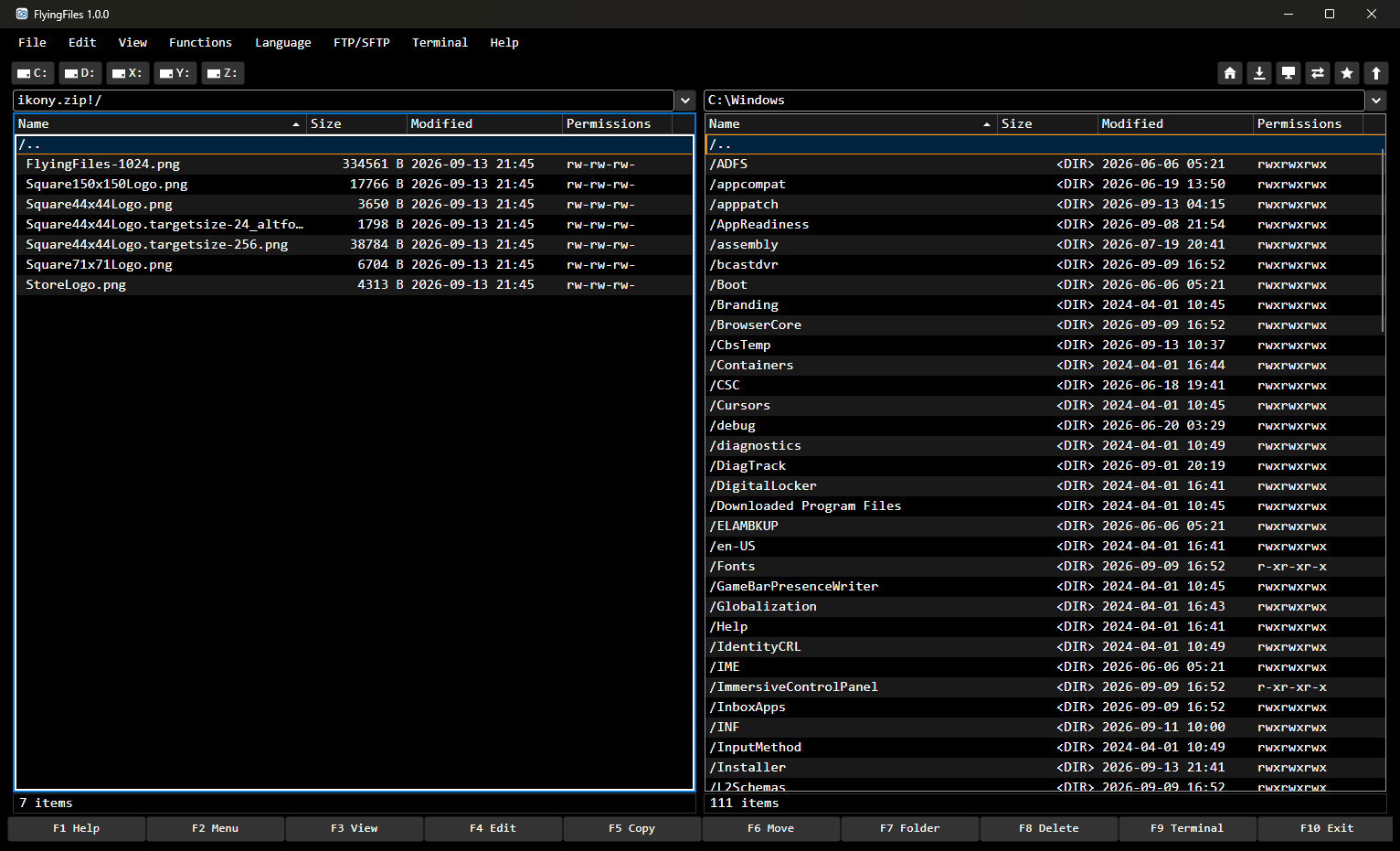
The panel shows the archive's contents. The path field has the form
name.zip!/folder.You move around the archive just as you move around folders.
The
/..row in the archive's top-level folder (or Backspace) closes the archive and returns to the folder that contains it, with the cursor on the archive file.
An archive can be on a disk, on an FTP/SFTP server or inside another archive.
The app reads names in ZIP archives packed on Windows (with File Explorer, 7-Zip or WinRAR) the way Windows does — in the encoding that matches the system's region — so accented letters (such as Polish or German ones) in file and folder names show correctly. After you change something in such an archive, the names are saved in UTF-8, which every system understands.
Extracting
Extracting is an ordinary copy out of the archive:
Open the archive in one panel, and in the other panel go to the destination folder.
Select the files (+ selects everything).
Press F5.
You can also view (F3) and edit (F4) files in an archive without extracting them.
Changing an archive
In ZIP, TAR, TAR.GZ, TAR.BZ2, TAR.XZ and GZ archives, you can:
copy and move files into the archive (F5, F6 from the other panel),
create folders (F7), delete (F8) and rename (Shift+F6),
edit files (F4).
Changes are first collected in a working copy. The app writes them to the archive file when you leave the archive: through /.. in its top-level folder, by taking the panel somewhere else, or by closing the window. “Saved and closed archive: …” appears in the window title.
Warning: If the changes can't be saved (e.g. because of missing disk space or permissions), the app shows an error and keeps you in the archive with your changes intact. The window can't be closed until the problem is resolved — nothing is lost silently.
7z, RAR, .bz2 and .xz archives are read-only. An attempt to change one ends with a message about missing permissions, before anything in the archive changes.
Compressing
Select files and folders (or put the cursor on a single item).
Choose Functions → Compress… or Compress… in the context menu.
In the Compress dialog, choose the Archive format: ZIP, TAR, TAR GZip, TAR BZip2, TAR XZ or GZip.
Check the File name. The app suggests:
for a single folder — its name,
for a single file — its name without the extension,
for several items — the name of the current folder.
The extension changes along with the format.
With several items, you can check Separate archives (one per item) — each item then goes into its own archive, named after it (
report.txt→report.zip).OK.
The archive is created in the current folder of the active panel — on a server too. If a file with that name exists, the app asks whether to overwrite it (with separate archives, separately for each one). The progress window first shows the data being counted, then the packing with speed and time; Cancel also works in the middle of a large file. At the end, the cursor moves to the new archive (with separate archives, to the first one).
A GZip archive can contain only one file. To pack a folder, choose TAR GZip.
Hidden files are always packed along with everything else.
The 7z and RAR formats aren't available in the compression dialog.
Compression level and password
Since 1.6.0, choose Compression level in Compress: ZIP offers no compression, fastest, normal or maximum; TAR GZip, TAR XZ and GZip offer fastest, normal or maximum. TAR and TAR BZip2 have no level selector.
For ZIP, select Encrypt with password, choose the Encryption method, and enter Password and Repeat password. Show password reveals the entered characters.
AES-256: strong encryption supported by FlyingFiles, 7-Zip, WinRAR and Keka, among others. Windows Explorer cannot open it.
ZipCrypto: weak encryption that can be broken; choose it only for compatibility with Windows Explorer. Passwords must contain only ASCII characters.
File names remain visible with both methods. The password also applies to separate archives.
When opening an AES or ZipCrypto encrypted ZIP, enter its password; you can retry after a mistake. Changes are saved with the same password. Password support is for ZIP, not encrypted 7z or RAR.
Large archives and archives on servers
When you open an archive, the app extracts it to the system's temporary folder and deletes that copy when the archive is closed. This means:
opening a very large archive takes time and requires free space on the system disk;
an archive from an FTP/SFTP server is first downloaded in full, and after changes it's uploaded back in full.
Tip: With a large archive on a server, it's faster to copy it to your disk first (F5) and open it locally.
FlyingFiles 1.7.4 · Features added after 1.0.0 are marked in the text.